

Guide to Pack IT Equipment

Key takeaways
To pack IT equipment for a move, back up all data, photograph and label every cable, shut down and unplug each device, and pack it in its original box or anti-static wrap with foam on all sides. Pack cables and peripherals first and monitors and towers last, store screens upright, and remove toner and ink from printers. For storage, use a climate-controlled unit, keep boxes off the floor, and let equipment reach room temperature before powering it on.
To pack IT equipment safely, back up your data, photograph and label every cable, power everything down, and pack each device in its original box or in anti-static wrap with foam padding so nothing shifts in transit. Computers, monitors, printers, and network gear are some of the most fragile and expensive things in any move, which is why handling them well is a big part of what commercial movers do. The same rules apply whether you’re moving a business, a home office, or a personal collection of electronics. This guide covers the materials, the step-by-step process, device-specific tips, and how to store IT equipment without damage.
Why is it so difficult to pack IT equipment?
IT equipment combines several risks in one box. Screens and internal components are easily damaged by pressure, drops, and vibration. Desktops and printers are heavy for their size and awkward to carry. And every device comes with cables, adapters, and small parts that have to come back together at the other end. One bump in the truck can crack a monitor panel or knock a component loose, and one missing power adapter can leave a workstation useless on the first day in the new space.
Here is what makes packing IT equipment tricky:
- computers and other electronics are fragile and easily damaged by impact and pressure
- damaged electronics can be expensive to repair or replace
- IT setups include a lot of cables that are easy to mix up
- losing a single component or adapter can make the whole device unusable
If you have more equipment than you can pack carefully in the time you have, consider hiring professional movers and packers for the job. Either way, use the quick reference below to see how each type of device should be prepared.
IT equipment packing quick reference
| Device | Before packing | How to pack it |
|---|---|---|
| Desktop tower | Back up data, shut down, unplug every cable, remove discs from drives | Anti-static wrap, foam or moving blankets, sturdy box, keep upright |
| Laptop or tablet | Back up data, power off completely | Original box or padded case, packed away from heavy items |
| Monitor or screen | Detach the stand if it comes off | Original box or anti-static wrap with foam on all sides, stand upright, mark “Fragile” and “This Side Up” |
| Printer, scanner, copier | Remove toner and ink cartridges and bag them; use the transport lock if the manual lists one | Original packaging, or bubble wrap in a snug box that doesn’t let it shift |
| Cables, keyboards, mice | Photograph connections, label both ends of each cable | Coil with Velcro straps or zip ties, bag per device, label the bag |
| Servers and network racks | Full backup verified by IT, document the rack layout | Crates or rack cases, moved by a professional crew |

Should you hire professional movers to pack computer equipment?
If you have a lot of computers or other IT equipment, it may be best to leave the packing to professionals. Professional packing and unpacking services are often the fastest and safest way to move electronics, because the crew arrives with the right boxes, padding, and experience packing screens and towers.
Heavier pieces such as large copiers, server racks, and conference room AV systems are a good fit for heavy item movers, who bring dollies and crates and know how to carry delicate equipment through tight hallways and stairwells. Professional help costs more than packing everything yourself, but it reduces the chance that an expensive device arrives damaged and saves your staff hours of packing.

Moving in Mississippi, Tennessee or Colorado?
Spyder Moving gives free, no-obligation quotes. Licensed, bonded and insured.
How do you move IT equipment safely over a long distance?
Long-distance moves, for example if you are moving from Texas to Mississippi, add hours of road vibration and more loading and unloading. Pack with that in mind: every device should be immobilized inside its box, with padding on all sides and no empty space where it can slide.
Check how your equipment is protected before you go. On interstate moves, federal rules let movers offer basic Released Value protection, which limits the mover’s liability to no more than 60 cents per pound per article. A light but expensive laptop or monitor would be covered for only a small fraction of its value under that option. Full Value Protection makes the mover responsible for the replacement value of lost or damaged goods, so ask about it, and list high-value devices on your inventory.
If you are shipping IT equipment with a parcel carrier instead, insure the shipment for its full replacement value and use double boxing for screens and towers. For more on crossing state lines with a computer, read our guide to extra precautions when moving your computer across state lines.

How do you pack a computer for moving, step by step?
Packing electronics takes longer than packing clothes or books, so set aside enough time to do it correctly and without rushing. These eight steps work for a single home office or a whole department.
Step 1: Gather your materials and make an inventory
Collect anti-static bubble wrap, foam blocks or corners, boxes in several sizes (or the original boxes), packing tape, zip-top bags, cable ties, and markers. You can check with your residential movers whether they supply packing materials. Then write a complete inventory of every device and accessory so nothing is left behind. Our guide to creating an inventory system while packing shows a simple way to do it.
Step 2: Downsize as much as you can
The more electronics you have, the harder they are to move. Before you pack, retire devices you no longer use. You can donate working electronics you’ve upgraded from to an organization like Computers with Causes or sell broken ones for parts. Wipe your data from any device you give away.
Step 3: Photograph every cable connection
Before you pull a single cable, take photos of where each one plugs in, front and back. Setting up a workstation without a record of the connections is far harder than taking it apart. Label both ends of each cable and the matching port with colored stickers or tape so they are easy to match later.
Step 4: Shut down, unplug, and disconnect everything
Shut each device down completely to avoid data loss, then unplug it from power. Remove any discs from drives. Finally, take the setup apart completely: disconnect all cables, remove detachable parts, and separate monitors, system units, keyboards, mice, speakers, scanners, and printers. IT equipment is easier and safer to move in parts than as a whole.

Step 5: Pack cables, keyboards, and mice first
Start with the small loose components. Sort cables by the device they belong to, coil each one loosely, secure it with a Velcro strap or zip tie, and put the set in a labeled bag. Keyboards and mice can go in a bag or small box together, padded so they don’t rattle.
Step 6: Set up a packing station
Before you move on to the larger and more fragile pieces, put shockproof packing supplies such as foam, anti-static wrap, and boxes together on one table. A dedicated station means you won’t be hunting for tape or scissors halfway through wrapping a monitor.
Step 7: Wrap and box the large components
Pack monitors and system units last, since they are the most fragile. Wrap each one in at least one or two protective layers, such as anti-static bubble wrap and a moving blanket, then place it in a box that fits snugly. Pad the bottom, set the device in, and fill every gap with foam, packing peanuts, or crumpled paper so it can’t shift. Don’t overstuff the box, and never stack heavy items on top of a screen. Device-specific tips follow in the office equipment section below.
Step 8: Seal and label every box
Seal each box with packing tape and label it with its contents, the destination room or desk, and “Fragile” where needed. Clear labels save a lot of time when it’s time to set everything up again.
What else protects IT equipment during a move?
The steps above cover the basics. A few more habits make the difference between equipment that works on day one and equipment that needs repairs.
Use original packaging or high-quality supplies
Whenever possible, use the original packaging for electronic devices. The molded foam is designed for that exact device, which matters most for small but fragile items like tablets and webcams that can’t be packed in bulk. The same principle applies to anything breakable that needs individual protection: relocating a home bar, for example, means wrapping every glass and bottle on its own.

If the original boxes are gone, use sturdy double-wall boxes or plastic bins, foam padding, and padded moving blankets. Don’t cut corners on materials: a few extra dollars in padding costs far less than a replacement monitor.
Label everything
Staying organized is key with IT equipment, so label everything, from cables to bags to boxes. Label cables by type (Ethernet, HDMI, USB) or by device (printer, scanner, router). Mark hardware bags with what’s inside, such as screws or mounting brackets for a monitor arm. Label boxes with the device name, the room or employee it belongs to, and the date packed. A consistent system makes it easy to track every item and much faster to put everything back together.

Back up your data and plan for the unexpected
Even careful packing can’t rule out damage, so protect what matters most: the data. Back up all your files to the cloud or an external drive before moving day, and keep that drive with you instead of in the truck. Check your moving coverage so you know what is protected, and keep a small budget for any repairs.
How do you properly pack and store ICT equipment to prevent damage?
To pack and store ICT equipment without damage, prevent the four things that harm electronics most: impact, pressure, static, and moisture. Packing handles the first three: anti-static wrap instead of ordinary plastic, foam on every side, devices stored upright, and nothing heavy stacked on top. Storage handles the last one.
If equipment will sit in storage before or after the move, keep these points in mind:
- Choose climate-controlled storage. Heat, cold, and humidity swings are hard on circuit boards, screens, and batteries. Our guide on protecting belongings from extreme temperatures in storage explains why.
- Keep boxes off the floor on a pallet or shelf, and leave space around them for air to circulate.
- Don’t seal electronics tightly in plastic for long periods, which can trap moisture against the device.
- Store screens and towers upright, and never put heavy boxes on top of them.
- After moving equipment out of a cold truck or unit, let it reach room temperature before you power it on so any condensation can dry.
If you need a place to keep equipment between offices, Spyder Moving and Storage offers storage services alongside the move itself.
How to avoid damage when packing office equipment, device by device
The steps above work for any computer setup. In an office, though, you are also dealing with printers, copiers, multiple screens, and sometimes server hardware, and each of them breaks in its own way during a move. Before you unplug anything, back up every file to the cloud or an external drive and confirm the backup opens. If you have an IT team, ask them to sign off on it.
Monitors and screens
Wrap each screen in anti-static bubble wrap, which prevents the static discharge that ordinary plastic can cause, then box it with foam padding on all sides. Pack screens standing upright, never flat, so nothing presses on the panel, and mark the box “Fragile” and “This Side Up.” Large mirrors and framed glass need similar padding, and our five steps to packing a mirror walk through the process.
Printers, scanners, and copiers
Remove toner and ink cartridges before packing and seal them in plastic bags so they can’t leak. Use the original packaging if you still have it; otherwise wrap the machine in bubble wrap or foam and choose a box it can’t shift around in.
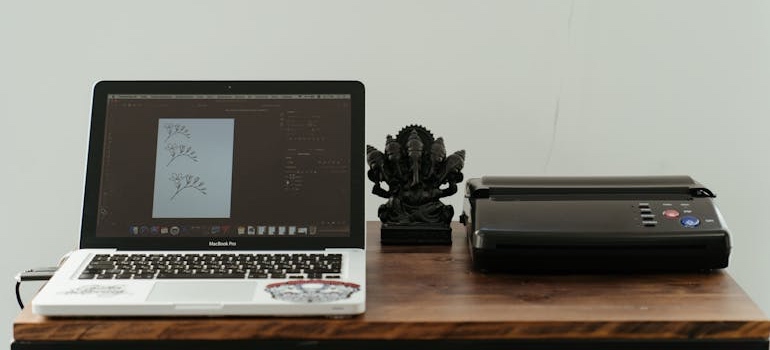
Computer towers and laptops
Wrap towers in anti-static wrap and pack them in strong boxes with foam padding. Laptops travel best in padded cases, or wrapped and placed in a cushioned box away from heavier items, because both are vulnerable to pressure and impact. Coil power cords with zip ties or Velcro straps instead of winding them tightly around the device.
Server racks and large equipment
Server racks, conference room AV systems, and large copiers are usually too heavy or delicate for staff to move. This is where insured office movers, such as Spyder’s Denver movers, earn their fee: they bring the crates, dollies, and experience, and their coverage protects you if something breaks.
Old hardware you won’t take along
An office move is a good time to retire outdated computers and printers instead of paying to move them. The EPA’s electronics donation and recycling guidance recommends deleting all personal information from devices first and taking batteries out, since they may need separate recycling.
Final check before moving day
- Walk through the inventory and confirm every device is packed and listed.
- Mark each box with its contents and the department or employee it belongs to; color-coded labels speed up setup.
- Note each device’s power requirements on its box, so equipment that needs a dedicated circuit or a UPS gets placed correctly.
- Pack cords and cables separately from the devices, in labeled bags, so they don’t get lost or crush a screen.
- Number the boxes and keep the packing list in both printed and digital form.
- Confirm that backups are complete and accessible.
- Tell employees and IT staff the schedule so they can plan the setup at the new office.
Who can help you move IT equipment for an office relocation?
When you move an office, there’s a lot to coordinate, from packing every workstation to finding the right commercial movers for the job. IT equipment is the part that’s easiest to underestimate, because the business can’t work until it’s set up again. Schedule the IT move for a time with the least downtime, agree in advance which devices your staff will pack and which the movers will handle, and have your IT team ready to reconnect the network as soon as the equipment arrives.
With the right materials and a clear plan, you can pack IT equipment so that every computer, screen, and printer arrives ready to work: back up first, photograph and label the cables, cushion each device, and keep high-value hardware on your inventory. If you’d rather have a crew do it, Spyder Moving and Storage handles home office and commercial moves from offices in Mississippi, Tennessee, and Colorado. Request a free estimate and tell us what equipment you’re moving.
Frequently Asked Questions
How do you properly pack and store ICT equipment to prevent damage during transport or storage?
Back up the data, power down and disconnect each device, then pack it in its original box or in anti-static wrap with foam padding so it can't shift. Store the boxes upright in a climate-controlled space, off the floor, with nothing heavy on top, and let equipment warm to room temperature before you turn it on.
How do you move IT equipment safely?
Move IT equipment safely by backing up data first, labeling every cable, and packing each device so it is immobilized with padding on all sides. Keep screens upright, keep high-value devices on your moving inventory, and ask your mover about Full Value Protection rather than basic coverage.
How do you pack a computer for moving?
Shut the computer down, unplug and photograph every cable connection, and remove any discs. Wrap the tower in anti-static bubble wrap, place it upright in a snug box padded with foam or blankets, and pack its cables in a labeled bag.
How should IT equipment be packed for shipping?
Use the original packaging when you have it; otherwise wrap each device in anti-static wrap, double-box screens and towers, and fill every gap so nothing moves. Insure the shipment for its full replacement value and mark boxes "Fragile" and "This Side Up."
Are moving companies liable for damaged electronics?
On interstate moves, a mover's liability depends on the protection you choose: basic Released Value caps it at no more than 60 cents per pound per article, while Full Value Protection makes the mover responsible for replacement value. Because electronics are light but expensive, ask for Full Value Protection and list high-value devices on your inventory.
Should you hire movers to move office IT equipment?
For server racks, large copiers, AV systems, or many workstations, hiring commercial movers is usually the safer choice, since they bring crates, dollies, and coverage. Staff can still pack personal desk items and small peripherals to keep costs down.
Free, no-obligation estimate
Get your free moving quote
Tell us where you are moving from and to, and our team will get back to you with a quote. Serving Mississippi, Tennessee and Colorado. Prefer to talk? Call (800) 221-3560.
"*" indicates required fields